Kling 4.0 Guide: Text to Video and First and Last Frames
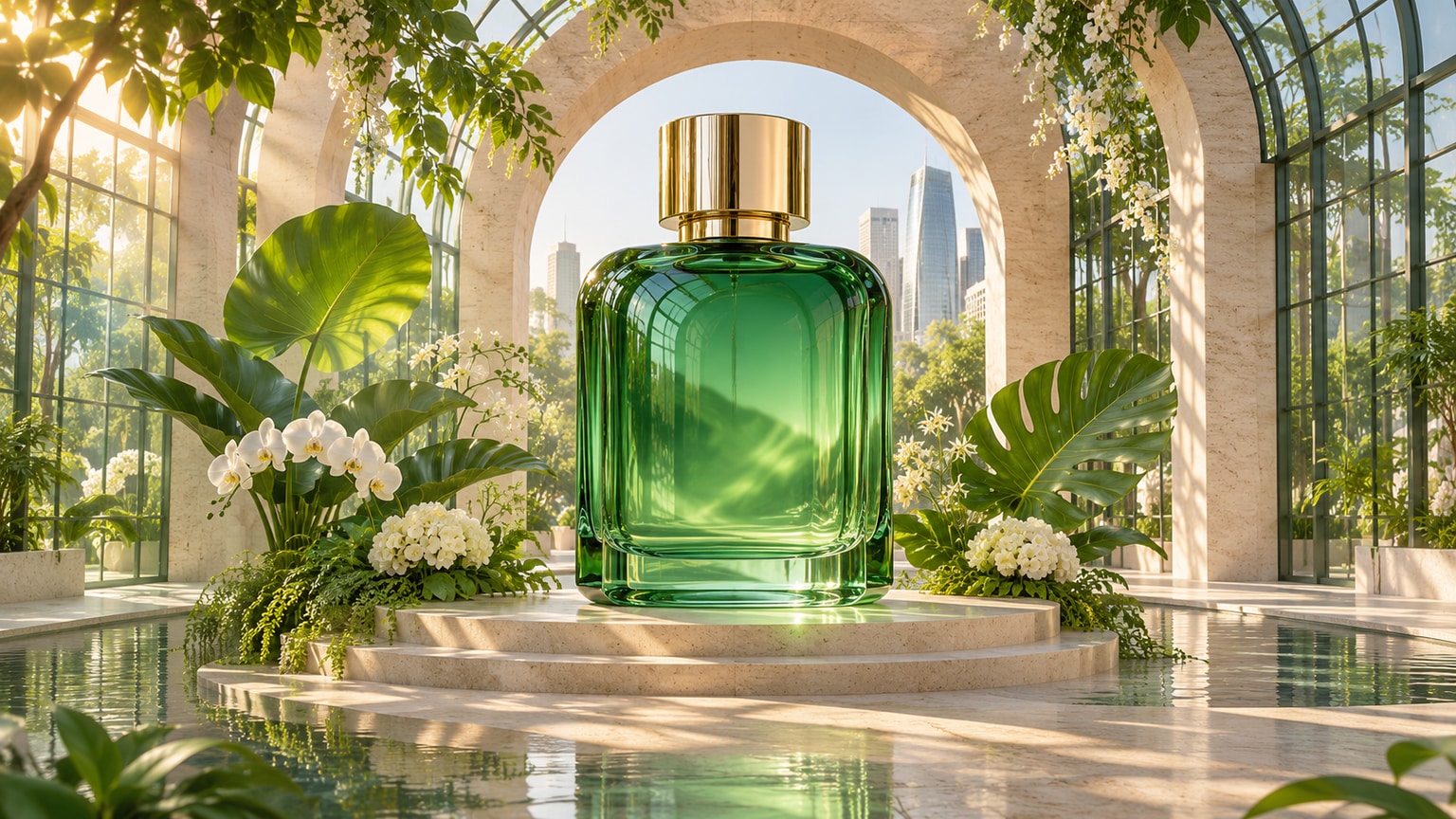
Kling 4.0 is Kuaishou’s video generation model. On JoyInAIGC, you can describe a scene in text, animate one image, or provide both the first and last frames. Both the KIE and GenGen channels offer 3–30 second clips at 720p or 1080p. For a first project, try a short product shot with one camera move and room for a caption.
What Kling 4.0 brings to a video workflow
The official Kling guide highlights longer continuous shots, camera direction, synchronized sound, and control through visual references. It also describes Omni Reference and multiple keyframes. The JoyInAIGC workflow below uses the options available in our generator: text, one opening image, or an opening and a closing image.
→ Read the official Kling 4.0 guide ↗Text to video: write a shot the camera can follow
Start with the subject and setting, then describe what moves and how the camera follows it. For a first test, set 3–5 seconds at 720p and choose the aspect ratio before generating. Put the most important detail near the start of the prompt so you can revise it easily between takes.
Try this prompt: “A green glass perfume bottle stands on a pale stone pedestal in a sunlit greenhouse. The camera slowly pushes in as sunlight moves across the glass. Keep the bottle upright and centered, and end on its gold cap. Soft leaves rustle in the background.”
→ Try Kling 4.0 text to video · KIEImage to video: choose the opening and closing frames
Upload a product photo as the first frame to set the starting composition. Add a second photo if the clip needs to finish on a specific view, such as a closer shot of the same bottle. Crop both images to the intended aspect ratio. Similar lighting and product orientation make the transition easier to guide.
For the perfume example, use a wide product shot for the first frame and a gold-cap close-up for the last. Ask for a single slow push-in and a brief pause at the end. Review the cap, the bottle edges, and any visible label as the camera moves.
→ Try Kling 4.0 first and last frames · GenGenChoose the format and compare channel quotes
For text to video, choose 9:16 for vertical feeds, 16:9 for landscape, 1:1 for square, or 21:9 for an ultrawide composition. With an uploaded first frame, the image sets the aspect ratio. Once a short draft has the framing and motion you want, try 1080p for the clip you plan to keep.
Compare KIE and GenGen with the same prompt, images, duration, and resolution. The generator shows the credit quote for the selected channel before you submit. When reviewing the clips, check motion, product details, and sound against the intended placement. You can reopen finished clips in your generation history.
Try it yourself
Create 3–30 second Kling 4.0 clips on JoyInAIGC. Try a text prompt or animate a product photo with first and last frames, then check the KIE and GenGen quotes.
Open the Kling 4.0 generatorFAQ
How long can a Kling 4.0 video be on JoyInAIGC?
Both channels generate clips from 3 to 30 seconds at 720p or 1080p.
Can I animate one product photo?
Yes. Upload it as the first frame, then describe what moves and where the camera goes. Add a last frame if you have a specific closing composition.
Where can I see how many credits a video costs?
Sign in, choose a channel, and enter your prompt and settings. The generator shows the quote before you submit.